How to Download and Install Apps from Google Play Store on Your Android Device
The Google Play Store is the go-to platform for downloading apps, games, music, movies, books, and more for your Android device. Whether you're looking for the latest apps, exploring entertainment options, or simply looking to upgrade your phone's functionality, the Play Store app makes it easy to access millions of options. In this blog post, we'll guide you step-by-step on how to download and install apps from the Google Play Store onto your Android device.
Step 1: Open the Google Play Store on Your Android Device
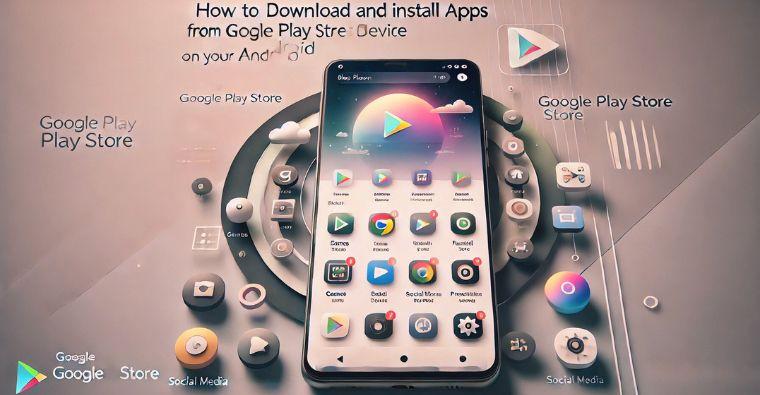
To start, you need to have the Google Play Store app installed on your device. Most Android devices come with the Play Store pre-installed, so you should find the Play Store app in your app drawer or on your home screen. The Play Store icon looks like a colorful triangle (green, blue, yellow, and red). Simply tap the icon to open the Play Store.
Step 2: Search for the App You Want to Download
Once you're inside the Play Store, you’ll see a search bar at the top. Tap on the search bar and type in the name of the app you want to download. For example, if you're looking for Telegram, simply type "Telegram" into the search bar. You can also search for popular apps like "WhatsApp," "Instagram," or even specific categories like "free music apps."
Alternatively, you can browse different categories, including games, social media, entertainment, and productivity, by scrolling through the homepage or selecting a category from the menu.
Step 3: Choose the App You Want to Install
After typing your app's name in the search bar, a list of results will appear. Browse through the search results and tap on the app you want to install. This will take you to the app's page, where you can see more details, such as the app’s description, user ratings, screenshots, and permissions required for the app.
Step 4: Tap “Install” to Download the App
On the app’s page, you’ll see an Install button (for free apps) or a Price button (for paid apps). For free apps, simply tap Install, and the download will begin automatically. The Play Store app download will only take a few seconds or minutes, depending on your internet connection and the size of the app.
If it's a paid app, you’ll need to tap Price and follow the payment process to complete the transaction before the Google Play Store download begins.
Step 5: Wait for the Installation to Complete
Once the download starts, the Play Store will automatically install the app onto your device. You can see the progress of the download at the top of your screen or in the notification shade. Once the installation is complete, you’ll see a notification that the app is ready to use.
Step 6: Open the App and Start Using It
After installation, you can tap Open directly from the Play Store page, or you can find the app in your app drawer. The newly installed app will also show up on your home screen, depending on your settings.
Congratulations! You've successfully installed an app from the Google Play Store.
Additional Tips for Downloading Apps from the Play Store
- Update Your Play Store App Regularly: To ensure smooth app downloads and access to the latest features, keep your Play Store app updated. Updates are typically installed automatically, but you can also manually check for updates in the Play Store settings.
- Manage Your Storage: If you're having trouble installing apps due to storage space, go to your device's Settings > Storage and clear up some space by deleting unused apps or files.
- Install Apps on Multiple Devices: If you have multiple Android devices, you can use the same Google account to install apps across all devices. Simply sign in with your Google account and install the app on any device you own.
- Enable Automatic Updates: To ensure your apps are always up-to-date, turn on automatic updates for your Google Play Store app. Go to the Play Store settings, tap on Auto-update apps, and choose the option that suits you best.
Why Choose the Google Play Store for App Downloads?
The Google Play Store is the most reliable and secure platform for downloading apps on your Android device. Here's why:
- Security: Google checks all apps for malware and harmful content before they’re made available on the Play Store. This ensures that apps downloaded from the Play Store are safe to use.
- Variety: With millions of apps available, the Play Store offers a wide range of choices for every interest, from productivity tools to entertainment apps, including free music apps and Telegram downloads.
- Regular Updates: Most apps in the Play Store are regularly updated to add new features, fix bugs, and improve performance.
- User Reviews: The Play Store provides user ratings and reviews, so you can check what other users think of an app before downloading it.